
VMware vSphere Lifecycle Manager (vLCM) plays an essential role in maintaining a consistent, secure, and up-to-date virtualization infrastructure. It provides centralized management of ESXi host software, including updates, patches, drivers, firmware integrations, and software components.
One of its key capabilities is the Check Compliance operation, which compares the software configuration installed on an ESXi host or cluster against the desired image defined in vCenter Server. This process helps administrators identify version mismatches, missing components, and hosts that require remediation.
However, in some environments, particularly those where previous image staging or update operations have taken place, the compliance check may fail unexpectedly with the following error;
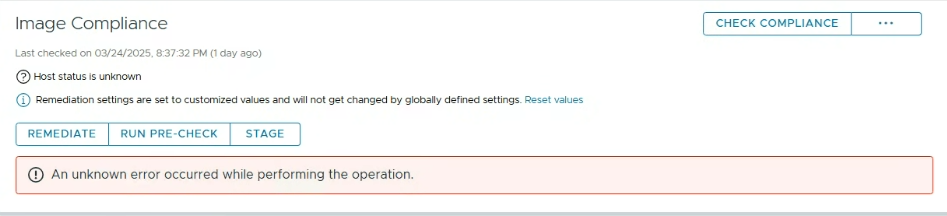
An unknown error occurred while performing the operationAlthough the message does not provide much information about the underlying issue, the problem may be related to previously staged software images remaining on the affected ESXi host.
This article explains the possible cause of the error, how to identify it through ESXi lifecycle logs, and how to safely resolve the issue on ESXi 7.x and ESXi 8.x hosts.
Understanding the Problem
When an administrator initiates a compliance check against an image-managed ESXi host or cluster, vSphere Lifecycle Manager evaluates the currently installed software components and compares them with the desired image.
The operation can be initiated through the vSphere Client by navigating to:
Hosts and Clusters → Select Host or Cluster → Updates → Hosts → Image → Check Compliance
Under normal circumstances, Lifecycle Manager completes the scan and reports whether the host is compliant with the desired image.
However, when this issue occurs, the task fails and vCenter Server displays:
An unknown error occurred while performing the operationThe failure may affect an individual ESXi host or multiple hosts within the same cluster. In some cases, other hosts complete their compliance checks successfully, while a specific host consistently fails.
This behavior suggests that the problem may be related to the local software image state of the affected ESXi host rather than a general vCenter Server communication failure.
Identifying the Error Through ESXi Logs
The first step in troubleshooting is to examine the lifecycle logs on the affected ESXi host.
Connect to the ESXi host through SSH and inspect the following log file:
/var/run/log/lifecycle.logTo display the most recent log entries, execute:
tail -n 100 /var/run/log/lifecycle.logAlternatively, filter the log file for relevant errors:
grep -E "Failed to validate|KeyError|Scanner" /var/run/log/lifecycle.logWhen this issue occurs, the logs may contain entries similar to the following:
YYYY-MM-DDThh:mm:ssZ Er(11) lifecycle[2240255]: Scanner:906 Failed to validate/extract the softwareSpec: 'VMware-VM-Tools_12.2.5.#####-######'
YYYY-MM-DDThh:mm:ssZ Er(11) lifecycle[2240255]: Scanner:907 Traceback (most recent call last):
YYYY-MM-DDThh:mm:ssZ Er(11)[+] lifecycle[2240255]: File "/tmp/esx-update-2240255/lib64/python3.11/site-packages/vmware/esximage/ImageManager/Scanner.py", line 3388, in scan
YYYY-MM-DDThh:mm:ssZ Er(11)[+] lifecycle[2240255]: self.stagedSoftwareSpec = self.getImageProfileScanSpec(
YYYY-MM-DDThh:mm:ssZ Er(11)[+] lifecycle[2240255]: File "/tmp/esx-update-2240255/lib64/python3.11/site-packages/vmware/esximage/ImageManager/Scanner.py", line 1355, in getImageProfileScanSpec
YYYY-MM-DDThh:mm:ssZ Er(11)[+] lifecycle[2240255]: compInfo = self.scanLocalComponents(imageProfile,
YYYY-MM-DDThh:mm:ssZ Er(11)[+] lifecycle[2240255]: File "/tmp/esx-update-2240255/lib64/python3.11/site-packages/vmware/esximage/ImageManager/Scanner.py", line 1123, in scanLocalComponents
YYYY-MM-DDThh:mm:ssZ Er(11)[+] lifecycle[2240255]: probs = hostComps.Validate(self._depotMgr.vibs)
YYYY-MM-DDThh:mm:ssZ Er(11)[+] lifecycle[2240255]: File "/tmp/esx-update-2240255/lib64/python3.11/site-packages/vmware/esximage/Bulletin.py", line 1613, in Validate
YYYY-MM-DDThh:mm:ssZ Er(11)[+] lifecycle[2240255]: return scanner.Validate()
YYYY-MM-DDThh:mm:ssZ Er(11)[+] lifecycle[2240255]: File "/tmp/esx-update-2240255/lib64/python3.11/site-packages/vmware/esximage/ComponentScanner.py", line 1530, in Validate
YYYY-MM-DDThh:mm:ssZ Er(11)[+] lifecycle[2240255]: self._GetAllProblems()
YYYY-MM-DDThh:mm:ssZ Er(11)[+] lifecycle[2240255]: File "/tmp/esx-update-2240255/lib64/python3.11/site-packages/vmware/esximage/ComponentScanner.py", line 740, in _GetAllProblems
YYYY-MM-DDThh:mm:ssZ Er(11)[+] lifecycle[2240255]: compRelation = self.componentScanResult[comp.id]
YYYY-MM-DDThh:mm:ssZ Er(11)[+] lifecycle[2240255]: KeyError: 'VMware-VM-Tools_12.2.5.#####-######'
Two messages are particularly important when analyzing this problem.
Failed to Validate or Extract the Software Specification
Failed to validate/extract the softwareSpecThis message indicates that Lifecycle Manager is unable to validate or extract the software specification associated with the image being evaluated.
During a compliance scan, ESXi examines its software inventory and image metadata. If previously staged image information is inconsistent or cannot be processed correctly, the validation procedure may fail.
KeyError During Component Validation
KeyError: 'VMware-VM-Tools_12.2.5.#####-######'This error occurs when the image-scanning process attempts to reference a software component that cannot be found in the expected component relationship data.
Although the example references VMware Tools, it does not necessarily mean that VMware Tools itself is corrupted or needs to be reinstalled.
Instead, the error may result from inconsistent metadata associated with a previously staged software image.
For this reason, reinstalling VMware Tools or immediately upgrading the ESXi host is not the recommended first troubleshooting step.
Root Cause: Previously Staged Software Images
According to Broadcom Knowledge Base Article 397593, this issue occurs because of a staged software image remaining on the ESXi host.
To understand why this causes compliance failures, it is useful to examine how image staging works in vSphere Lifecycle Manager.
Before applying a software update, Lifecycle Manager can prepare the required installation files and software components on the target ESXi host. This process is known as image staging.
During staging, the required software packages and associated metadata are transferred or prepared in designated locations on the ESXi host.
These files are subsequently used during the remediation process.
However, if a previous update was interrupted, an image preparation operation did not complete successfully, or outdated staging content remains on the host, the stored information may no longer be consistent with the current software configuration.
When Lifecycle Manager performs a new compliance scan, it may attempt to validate these previously staged components.
If the expected component information cannot be retrieved or validated, the scanning process fails and returns the generic error displayed in vCenter Server.
In this scenario, the issue is associated with the lifecycle staging state rather than necessarily indicating a problem with running virtual machines, VMFS datastores, or the ESXi management network.
Important Checks Before Applying the Resolution
Before removing staged image content, administrators should verify the ESXi version and ensure that no active lifecycle operations are running.
First, connect to the affected ESXi host through SSH and determine its version:
vmware -vNext, review the recent tasks in vCenter Server and confirm that no image staging, remediation, or software update operation is currently active.
It is also advisable to review any planned updates that may depend on the staged image content.
Important: The following resolution involves deleting staged software content. Only proceed after confirming that the targeted files belong to an inactive or obsolete staging operation.
For production environments, a maintenance window and a recent ESXi configuration backup are recommended before making changes.
The procedures described below target lifecycle staging locations only. Critical ESXi system partitions such as /bootbank and /altbootbank must not be deleted or modified as part of this resolution.
Resolution for VMware ESXi 7.x
On ESXi 7.x hosts, staged lifecycle content may be located in the following temporary directories:
/tmp/stagebootbank
/tmp/stageliveimage
These directories may contain temporary image information associated with previous software staging operations.
Step 1: Check the Staging Directories
Connect to the affected ESXi host using SSH.
Verify whether the staging directories exist:
ls -ld /tmp/stagebootbank /tmp/stageliveimageIf the directories are present, inspect their contents:
ls -lah /tmp/stagebootbank
ls -lah /tmp/stageliveimage
The directories may not exist on every ESXi host. If a directory is absent, no cleanup is required for that location.
Step 2: Review the Ramdisk Configuration
On ESXi 7.x, staging locations may be associated with temporary visorfs ramdisk structures.
To review the available ramdisks, execute:
esxcli system visorfs ramdisk listThis command displays the ramdisk configuration and helps identify whether the staging paths are associated with an existing ramdisk.
Step 3: Remove the Unused Staging Content
After confirming that the staging content is no longer required, remove the relevant staging area.
For the stagebootbank directory:
esxcli system visorfs ramdisk remove -t /tmp/stagebootbank
rm -rf /tmp/stagebootbank
Alternatively, if the obsolete content is located in stageliveimage:
esxcli system visorfs ramdisk remove -t /tmp/stageliveimage
rm -rf /tmp/stageliveimage
These commands remove the associated ramdisk when applicable and delete the remaining temporary staging directory.
If the ramdisk removal fails because the resource is still in use, investigate the active operations before attempting further cleanup.
Step 4: Run the Compliance Check Again
After the cleanup has been completed, return to the vSphere Client.
Navigate to the affected ESXi host or cluster and select:
Updates → Hosts → Image → Check Compliance
Initiate a new compliance scan.
If the failure was caused by obsolete staging content, Lifecycle Manager should be able to evaluate the host software configuration again.
Resolution for VMware ESXi 8.x
VMware ESXi 8.x uses different locations for lifecycle staging content.
The relevant directories are:
/var/vmware/lifecycle/stagebootbank
/var/vmware/lifecycle/stageliveimage
The resolution follows the same general principle as ESXi 7.x: identify previously staged image content, confirm that it is no longer required, and remove it before repeating the compliance operation.
Step 1: Inspect the Staging Directories
Connect to the affected ESXi host through SSH.
Check the first staging directory:
ls -lah /var/vmware/lifecycle/stagebootbankThen inspect the second location:
ls -lah /var/vmware/lifecycle/stageliveimageThese commands display the available files and directories, allowing administrators to determine whether staged content is present.
Before proceeding, confirm that no active lifecycle task is using these files.
Step 2: Remove Obsolete Staging Files
Once the content has been identified as unused, clean the relevant staging directories.
To remove the contents of stagebootbank:
rm -rf /var/vmware/lifecycle/stagebootbank/*To remove the contents of stageliveimage:
rm -rf /var/vmware/lifecycle/stageliveimage/*These commands remove matching files and subdirectories from the specified staging locations without intentionally removing the parent directories.
Caution: The rm -rf command permanently deletes the targeted content. Verify each directory path carefully before execution. Do not run these commands while an image staging or remediation task is active.
Step 3: Recheck Lifecycle Manager Compliance
After removing the obsolete staging content, open the vSphere Client and navigate to:
Hosts and Clusters → Select Host or Cluster → Updates → Hosts → Image
Click Check Compliance to initiate a new scan.
Lifecycle Manager should now be able to perform the software inventory evaluation without encountering the previously staged image metadata responsible for the failure.
Verifying That the Issue Has Been Resolved
After completing the cleanup, it is important to verify that the compliance operation finishes successfully.
The following checks can help confirm that Lifecycle Manager is functioning correctly.
| Verification | Expected result |
|---|---|
| Check Compliance task | Completes without an error |
| Image compliance status | Displays a valid compliance result |
| ESXi host connectivity | Host remains connected to vCenter |
| Lifecycle log entries | Previous staging validation error does not recur |
| Desired image evaluation | Software comparison completes successfully |
A successfully completed compliance scan does not necessarily mean that the ESXi host will be reported as Compliant.
If the installed software differs from the desired image, Lifecycle Manager may legitimately report the host as Non-Compliant.
The key indicator of a successful resolution is that Lifecycle Manager can complete the scan and return a valid compliance assessment instead of failing with an unknown error.
Additional Troubleshooting If the Error Persists
If the compliance check continues to fail after staging cleanup, further investigation may be required.
Start by reviewing the latest lifecycle logs:
tail -n 200 /var/run/log/lifecycle.logDetermine whether the same KeyError or software specification validation failure is still present.
If the original staging-related error no longer appears, the remaining issue may have a different underlying cause.
Additional areas worth investigating include:
- vCenter and ESXi compatibility: Verify that the vCenter Server version supports the ESXi version and desired image configuration.
- Desired image components: Review the ESXi version, vendor add-ons, firmware add-ons, and additional components included in the cluster image.
- Previous lifecycle operations: Examine the vCenter task history for failed staging or remediation attempts.
- Image depot availability: Confirm that the required software components and metadata are available to Lifecycle Manager.
- Host-specific inconsistencies: Compare the affected host with other ESXi hosts in the same cluster that successfully complete compliance checks.
If the issue persists, collect the relevant vCenter Server and ESXi support logs before attempting more disruptive recovery actions.
The generic error message alone should not be treated as sufficient evidence to justify reinstalling software components or rebooting the host.
Recommendations and Best Practices
Maintaining a reliable vSphere Lifecycle Manager environment requires more than applying updates. Administrators should also ensure that image staging, compliance checks, and remediation operations follow a controlled process.
Before initiating an upgrade, verify compatibility between vCenter Server, ESXi, hardware vendor add-ons, drivers, and firmware components.
Avoid interrupting staging or remediation operations unless necessary, and review failed lifecycle tasks before starting a new update.
When a compliance scan fails, examine the ESXi lifecycle logs before making configuration changes. This helps distinguish staging-related problems from software compatibility issues or infrastructure communication failures.
For production environments, perform remediation activities during approved maintenance windows and retain appropriate backups and recovery procedures.
Following these practices can reduce unnecessary troubleshooting and improve the reliability of ESXi lifecycle management operations.
The “An unknown error occurred while performing the operation” message in VMware vSphere Lifecycle Manager can be frustrating because it provides little information about the actual cause of the failure.
However, when the ESXi lifecycle logs contain software specification validation errors or component-related KeyError messages, the problem may be associated with previously staged software images.
In the scenario documented by Broadcom Knowledge Base Article 397593, removing obsolete staging content allows Lifecycle Manager to evaluate the ESXi software configuration again.
The cleanup procedure differs between ESXi 7.x and ESXi 8.x because the staging directories are located in different paths.
Administrators should verify that the staging content is no longer required before deleting it and should always confirm the result by running a new compliance check.
The most effective troubleshooting approach is to identify the underlying cause through lifecycle logs before attempting disruptive actions such as restarting ESXi hosts, reinstalling components, or performing unnecessary upgrades.
By following this approach, administrators can resolve staging-related compliance failures while minimizing operational risk and maintaining the stability of their VMware vSphere infrastructure.