

VMware vCenter Server is a critical component of a virtualized infrastructure, providing centralized management of ESXi hosts, virtual machines, clusters, and other VMware services. Maintaining regular and reliable backups of vCenter Server is essential for ensuring business continuity, protecting configuration data, and recovering from unexpected system failures.
VMware vCenter Server Appliance (VCSA) supports File-Based Backup through the VMware Appliance Management Interface (VAMI). This functionality allows administrators to back up the appliance configuration, database, and associated data to external storage repositories using protocols such as FTPS, HTTPS, SFTP, FTP, NFS, SMB, and HTTP.
However, backup operations may occasionally fail, particularly when using Network File System (NFS) storage as the backup destination.
One of the errors that administrators may encounter is:
Error: BackupManager encountered an exception. See logs for details.
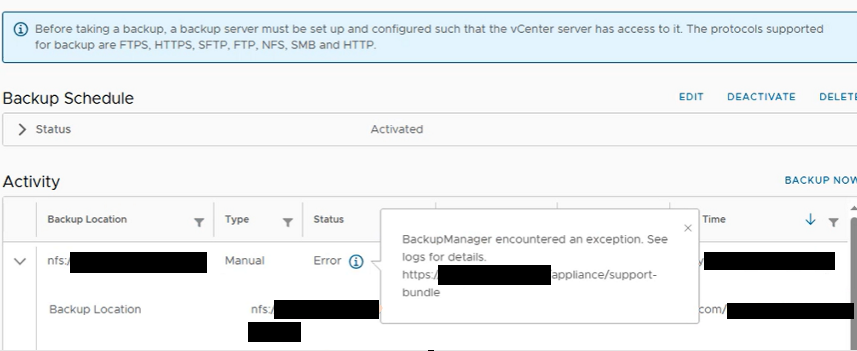
This article explains the causes of this error, how to investigate the associated log messages, and the steps required to resolve NFS-based backup failures in VMware vCenter Server 7.x and 8.x.
Understanding the Issue
When a scheduled or manually initiated VAMI backup uses NFS as its destination, the backup process may unexpectedly fail before completion.
In the VAMI management interface, navigating to Backup > Activity shows the affected backup task with an Error status.
Opening the task details displays the following message:
BackupManager encountered an exception.
See logs for details.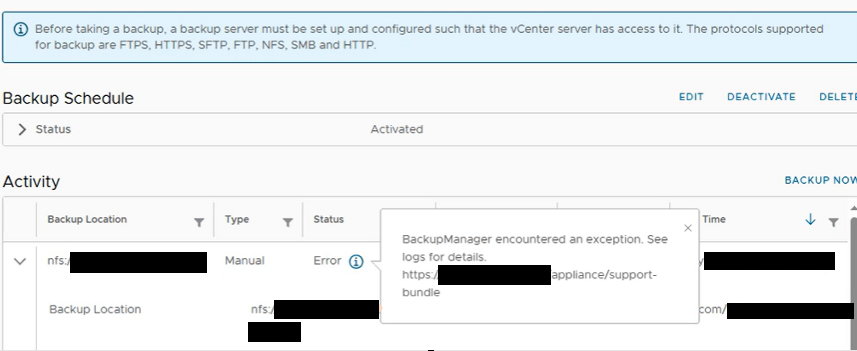
Although the message indicates that the backup operation encountered an exception, it does not identify the underlying cause.
Administrators must therefore examine the backup logs to determine why the operation failed.
In the scenario covered by this article, the failure occurs because the destination NFS repository does not have sufficient available storage capacity.
Affected VMware Versions
This issue may affect the following VMware environments:
- VMware vCenter Server Appliance 7.x
- VMware vCenter Server Appliance 8.x
The problem specifically applies to VAMI File-Based Backup operations configured to write backup data to an external NFS repository.
Investigating the Backup Failure
When a VAMI backup fails, the first troubleshooting step is to review the appliance backup logs.
VMware vCenter Server stores detailed backup and restore operation logs in the following file:
/var/log/vmware/applmgmt/backup.logTo access this file, establish an SSH connection to the vCenter Server Appliance using an authorized account.
For example:
ssh root@VCENTER_IPIf the appliance opens the restricted Appliance Shell and Bash access is enabled, switch to Bash by running:
shellOnce connected, use the following command to review the latest backup-related log entries:
tail -n 100 /var/log/vmware/applmgmt/backup.logAlternatively, use the following command to filter entries associated with backup failures:
grep -Ei "ERROR|BrokenPipe|Failed to backup|Failed to dispatch" /var/log/vmware/applmgmt/backup.logBrokenPipeError During Backup Processing
In affected environments, the backup log may contain an error similar to the following:
YYYY-MM-DDThh:mm:ss:uuu [VCDBBackup:PID-#####] [Proc::GetProcsStatus:Proc.py:328] ERROR: rc: 1, stderr: Traceback (most recent call last):
  File "/usr/lib/applmgmt/backup_restore/py/vmware/appliance/backup_restore/plugins/../util/Calculate.py", line 58, in <module>
    main(sys.argv[1], sys.argv[2], sys.argv[3])
  File "/usr/lib/applmgmt/backup_restore/py/vmware/appliance/backup_restore/plugins/../util/Calculate.py", line 45, in main
    stdout_obj.write(data)
BrokenPipeError: [Errno 32] Broken pipe
YYYY-MM-DDThh:mm:ss:uuu [VCDBBackup:PID-#####] [VCDB::BackupVCDB:VCDB.py:2053] ERROR: Failed to backup VCDB.
Traceback (most recent call last):
  File "/usr/lib/applmgmt/backup_restore/py/vmware/appliance/backup_restore/components/VCDB.py", line 1997, in BackupVCDB
    full_db_checksum = _full_database_backup(
  File "/usr/lib/applmgmt/backup_restore/py/vmware/appliance/backup_restore/components/VCDB.py", line 1257, in _full_database_backup
    raise BackupRestoreError('Failed to dispatch full database files.',
util.Common.BackupRestoreError: Failed to dispatch full database files.
Underlying process status. rc: 28
stdout:
stderr:
The following message is particularly important:
BrokenPipeError: [Errno 32] Broken pipe
This error indicates that a communication pipe between processes was unexpectedly interrupted.
During the backup operation, vCenter Server uses multiple processes to prepare, process, and transfer backup data to the destination repository.
If a receiving process terminates or can no longer accept data, the sending process may encounter a broken pipe error.
Although this message does not independently confirm a storage capacity problem, it provides an important indication that backup data processing or transmission was interrupted.
vCenter Server Database Backup Failure
Additional entries may appear in the same log file:
[VCDBBackup:PID-#####]
[VCDB::BackupVCDB:VCDB.py:2053]
ERROR: Failed to backup VCDB.

Traceback (most recent call last):

File "/usr/lib/applmgmt/backup_restore/py/vmware/appliance/backup_restore/components/VCDB.py", line 1997, in BackupVCDB
    full_db_checksum = _full_database_backup(

File "/usr/lib/applmgmt/backup_restore/py/vmware/appliance/backup_restore/components/VCDB.py", line 1257, in _full_database_backup
    raise BackupRestoreError('Failed to dispatch full database files.',

util.Common.BackupRestoreError:
Failed to dispatch full database files.

Underlying process status. rc: 28
These entries indicate that vCenter Server could not successfully complete the database backup process.
Two messages are particularly relevant:
Failed to backup VCDB
Indicates that the vCenter Server database backup operation did not complete successfully.
Failed to dispatch full database files
Indicates that the backup process was unable to complete the transfer or processing of the database backup files.
When these messages appear together with BrokenPipeError, administrators should investigate the destination storage repository, including its available capacity, accessibility, and write permissions.
Root Cause: Insufficient NFS Storage Capacity
In this specific scenario, the backup failure is caused by insufficient free space on the destination NFS storage repository.
During a File-Based Backup operation, vCenter Server collects the required configuration information, database content, and associated appliance data before transferring it to the configured backup destination.
If the NFS repository runs out of available storage space during this process, the backup files cannot be written successfully.
As a result, the receiving process may stop accepting data, interrupting the data stream and causing the sending process to report:
BrokenPipeError: [Errno 32] Broken pipe
Subsequently, the database backup operation fails, and VAMI reports the general BackupManager exception.
Several conditions may contribute to this problem:
- Accumulation of old backup files in the NFS repository.
- Insufficient capacity allocated to the backup destination.
- Storage quotas or file system limits restricting available capacity.
- Missing or improperly configured backup retention policies.
- Increasing backup sizes as the vCenter Server environment grows.
Therefore, checking the available space on the NFS repository should be one of the first troubleshooting steps.
It is important to distinguish this scenario from other possible causes of the same error, including NFS connectivity issues, permission problems, and storage service interruptions.
Resolution: Verify and Restore Available NFS Storage Capacity
The recommended approach is to inspect the NFS backup destination, confirm whether a capacity limitation exists, and reclaim or expand the available storage before retrying the backup operation.
Step 1: Connect to the vCenter Server Appliance
Establish an SSH connection to the appliance:
ssh root@VCENTER_IPReplace VCENTER_IP with the IP address or fully qualified domain name of the vCenter Server Appliance.
If necessary, switch to Bash using:
shellStep 2: Create a Temporary Mount Directory
Create a temporary directory that can be used to mount the NFS repository for capacity verification:
mkdir -p /tmp/nfs-checkThe directory will serve as a temporary mount point and should be removed after completing the checks.
Step 3: Mount the NFS Repository
If the appliance supports the required NFS mount operation, use the following command:
mount -t nfs NFS_SERVER_IP:/EXPORT_PATH /tmp/nfs-checkReplace the placeholders with the appropriate values:
NFS_SERVER_IP: IP address or hostname of the NFS server.EXPORT_PATH: Exported directory configured on the NFS server./tmp/nfs-check: Temporary local mount directory.
For example:
mount -t nfs 192.168.10.50:/backup/vcenter /tmp/nfs-checkThis command attempts to mount the remote NFS share to the temporary directory.
Important: Manual NFS mounting may not be available or supported on every VCSA deployment. If the command is unavailable, do not install additional packages or modify the appliance solely for this check. Instead, verify the repository capacity directly on the NFS server or through its storage management interface.
Step 4: Check Available Storage Space
After successfully mounting the NFS share, run:
df -h /tmp/nfs-checkThe command displays the total, used, and available space for the mounted file system.
Example output:
Filesystem                     Size  Used  Avail  Use% Mounted on
192.168.10.50:/backup/vcenter  500G  500G     0  100% /tmp/nfs-check
In this example, the NFS repository has a total capacity of 500 GB, and all available storage has been consumed.
The critical values are:
- Size: Total storage capacity.
- Used: Amount of storage currently occupied.
- Avail: Remaining available storage.
- Use%: Percentage of storage utilization.
When Avail shows 0 and Use% reaches 100%, the destination repository cannot accommodate additional backup data.
This condition can directly cause the VAMI File-Based Backup operation to fail.
If free space appears sufficient, also investigate storage quotas, file system limits, and inode availability.
Step 5: Free Up or Expand NFS Storage Capacity
Once insufficient storage capacity has been confirmed, corrective action must be taken on the destination repository.
Possible remediation options include removing expired backups, expanding the existing NFS storage volume, or moving backup data to a larger repository.
Before deleting any files, review the organization’s backup retention requirements and verify that the selected backups are no longer needed for recovery purposes.
In production environments, deleting backup data without validating its retention period could compromise disaster recovery readiness.
If storage expansion is possible, increasing the capacity of the NFS repository is often preferable to removing valuable recovery points.
Step 6: Unmount the Temporary NFS Directory
After completing the capacity checks, unmount the temporary NFS connection:
umount /tmp/nfs-checkRemove the temporary directory:
rmdir /tmp/nfs-checkThese commands remove the temporary mount and its local directory without deleting the backup data stored on the NFS server.
Restart the vCenter Server Backup Operation
After resolving the storage capacity issue, verify that vCenter Server can successfully complete a new backup.
Open the VMware Appliance Management Interface:
https://VCENTER_IP:5480Log in with an authorized appliance management account.
Navigate to the Backup section and review the existing backup configuration.
Confirm that the configured NFS destination is correct and accessible.
Next, select Backup Now to initiate a new backup operation.
Monitor the backup progress in the Activity section.
If the capacity issue has been resolved and no additional problems exist, the backup should complete successfully.
Once the task finishes, verify that the operation reports a successful status and confirm that the expected backup files have been created on the destination repository.
For additional validation, review the latest entries in:
/var/log/vmware/applmgmt/backup.logA successful backup operation should no longer generate the previously observed errors associated with the failed task.
Additional Troubleshooting if the Error Persists
If the same error continues after sufficient NFS storage capacity has been confirmed, further investigation is required.
Although insufficient storage is the root cause in the scenario described here, the BackupManager exception is a general error and may have other causes.
Verify NFS Connectivity
Confirm that the vCenter Server Appliance can communicate with the NFS server over the required network path.
Depending on the configured NFS version, verify that the relevant network ports and services are accessible.
Check NFS Export Permissions
Ensure that the NFS export is configured to allow the necessary write operations from the vCenter Server Appliance.
Incorrect export permissions or access restrictions may prevent backup files from being created.
Review NFS Server Logs
Inspect the NFS server’s system and storage logs for errors involving:
- Insufficient available space.
- File system or storage I/O failures.
- Permission-denied events.
- Interrupted NFS operations.
- Storage quotas or resource limitations.
Confirm Storage Health
If the NFS repository is provided by a NAS or enterprise storage array, review the storage management interface for capacity warnings, file system issues, and performance alerts.
Storage latency, temporary unavailability, or backend errors may also interfere with the backup process.
Review the Latest Backup Logs
If all storage and connectivity checks are successful, collect the relevant vCenter Server backup logs and investigate the first error recorded during the failed operation.
The initial failure often provides more useful diagnostic information than the general BackupManager exception displayed by VAMI.
Best Practices for Preventing Future Backup Failures
Preventing recurring backup failures requires proper storage planning, regular monitoring, and well-defined backup management procedures.
Implement Storage Capacity Monitoring
Monitor the available capacity of the NFS backup repository and configure alerts when utilization reaches predefined thresholds.
For example, organizations may choose to receive warnings when storage usage reaches 80% and critical alerts at 90%.
These thresholds should be adjusted according to backup size, backup frequency, and available storage growth.
Configure a Backup Retention Policy
Establish a retention policy that defines how long backup files must be preserved.
The policy should account for operational recovery requirements, regulatory obligations, and disaster recovery objectives.
Regularly review expired backups and remove them only when they are no longer required.
Plan for Backup Growth
As the vCenter Server environment expands, the size of its configuration and database backups may increase.
Ensure that the storage repository has sufficient capacity for both current backup requirements and anticipated future growth.
Monitor Scheduled Backup Results
An activated backup schedule does not guarantee that each backup completes successfully.
Regularly review the backup activity history and investigate failed or incomplete tasks.
Perform Periodic Restore Tests
A successful backup operation does not automatically guarantee that the resulting backup can be restored successfully.
Periodically perform controlled restore tests in an appropriate environment to validate the recoverability of the vCenter Server configuration and database.
The “BackupManager encountered an exception. See logs for details.” error during VMware vCenter Server File-Based Backup indicates that the backup operation encountered a failure that requires further investigation.
When this error occurs during an NFS-based backup, administrators should examine the following log file:
/var/log/vmware/applmgmt/backup.logErrors such as BrokenPipeError: [Errno 32] Broken pipe, Failed to backup VCDB, and Failed to dispatch full database files indicate that the database backup process or its data transfer was interrupted.
In the scenario discussed in this article, the underlying cause is insufficient available capacity on the destination NFS repository.
By verifying the storage capacity, reclaiming or provisioning adequate space, and restarting the backup operation, administrators can restore normal VAMI backup functionality.
Maintaining sufficient repository capacity, implementing appropriate retention policies, and regularly validating backup results are essential practices for protecting VMware vCenter Server environments and ensuring reliable disaster recovery operations.