![[EN] How to Change the Time Zone on Ubuntu Server 24.04](https://kadirkozan.com/wp-content/uploads/2026/03/27ce25e0-1b0e-475e-9233-d088f6756076-1024x683.png)

Setting the correct time zone on servers, desktop systems, and virtual machines is one of those tasks that is often overlooked, yet it is critically important.
A properly configured time zone plays a major role in maintaining consistent log records, ensuring scheduled tasks run at the correct time, simplifying security event analysis, and allowing applications to behave as expected. On a system running Ubuntu 24.04, changing the time zone is a straightforward process. It can be done entirely from the command line, which makes it especially practical for system administrators working on headless servers.
If your system will be used in Türkiye, the correct setting is typically:
Europe/IstanbulIn this article, we will look at two main methods for changing the time zone on Ubuntu Server 24.04:
tzdata
timedatectl
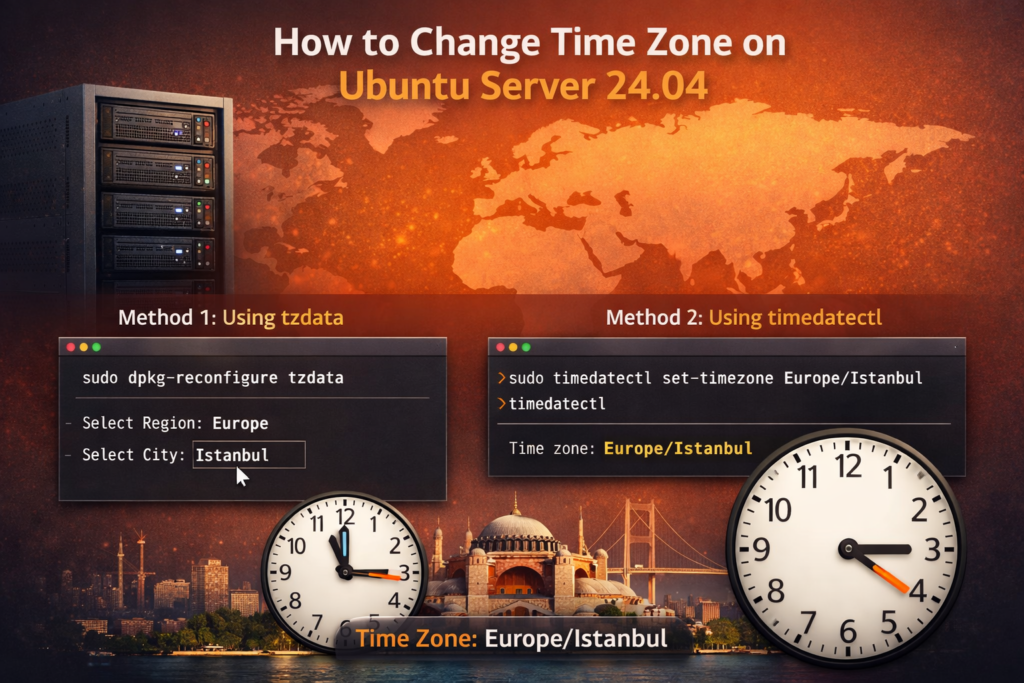
We will also walk through example commands step by step to configure the system for the Istanbul time zone.
Why Is the Time Zone Important?
On a Linux system, the time zone does much more than simply change the clock displayed on screen. It directly affects several operational areas, including:
- System logs being written with accurate timestamps
- Cron jobs and scheduled tasks running at the expected hour
- Applications and services behaving correctly according to regional time settings
- Security events being analyzed with proper timing context
- Time consistency between databases, application servers, and monitoring systems
In enterprise environments, an incorrect time zone can lead to confusing logs, broken automation, inaccurate alerts, and troubleshooting difficulties. For that reason, checking the time zone after installing Ubuntu is a good administrative habit.
Understanding Time Zone Handling in Ubuntu
Linux systems generally use UTC (Coordinated Universal Time) as the base reference for timekeeping. The local time shown to users and applications is calculated by applying the appropriate regional time zone on top of UTC.
For Istanbul, that value is:
Europe/IstanbulOn Ubuntu 24.04, the time zone setting is stored system-wide, which means both services and user sessions rely on it.
Before You Begin
Changing the time zone requires administrative privileges. In most cases, this means running commands with sudo.
If you do not have the required permissions on the system, you will need assistance from your system administrator.
Method 1: Changing the Time Zone with tzdata
One of the traditional ways to configure the time zone on Ubuntu is through the tzdata package. This package contains global time zone data and provides an interactive configuration interface.
Update the Package List
First, refresh the package index:
sudo apt updateMake Sure tzdata Is Installed
If tzdata is not already installed, install it with:
sudo apt install tzdataLaunch the Time Zone Configuration Screen
Run the following command:
sudo dpkg-reconfigure tzdataThis opens an interactive menu in the terminal.
In the first step, you will be asked to choose a geographic region. For Istanbul, select:
EuropeIn the next screen, choose:
IstanbulOnce the process is complete, the system will display the new time zone, the local time, and the UTC time.
What Is the Advantage of This Method?
This method is useful for administrators who prefer a menu-driven interface in the terminal. It allows you to select the correct region without needing to remember the exact time zone string.
Method 2: Changing the Time Zone with timedatectl
On Ubuntu 24.04, one of the most modern and practical ways to manage time settings is the timedatectl command. This tool is used on systemd-based systems to control date, time, and time zone settings.
View Current Time and Date Information
To see the system’s current time configuration, run:
timedatectlThis command displays information such as:
- Local time
- Universal time (UTC)
- RTC status
- Active time zone
- NTP synchronization status
This makes it easy to confirm which time zone the server is currently using.
List All Available Time Zones
To view all available time zones on the system:
timedatectl list-timezonesBecause the output is quite long, filtering it is usually more practical.
Filter Time Zones in the Europe Region
To see only time zones related to Europe:
timedatectl list-timezones | grep -i EuropeIf you want to search specifically for Istanbul:
timedatectl list-timezones | grep -i IstanbulThe result will most likely be:
Europe/IstanbulSet the Time Zone to Istanbul
To change the system time zone to Istanbul, run:
sudo timedatectl set-timezone Europe/IstanbulAfter executing this command, your system will start using the Türkiye / Istanbul time zone.
Verify the Change
To confirm that the operation was successful, run:
timedatectlYou should see output similar to:
Time zone: Europe/IstanbulQuick Setup for Istanbul Time
If your goal is simply to switch the server to Istanbul time as quickly as possible, the most efficient approach is to use these two commands:
sudo timedatectl set-timezone Europe/Istanbul
timedatectl
The first command changes the time zone, and the second confirms the result immediately.
What Should Be Checked After Changing the Time Zone?
After updating the time zone, it is good practice to perform a few additional checks.
Verify the System Time
Especially on production systems, confirm that the displayed time is correct.
Check NTP Synchronization
Even if the time zone is correct, the actual system time may still be wrong if the server is not synchronized with an NTP source. You can review synchronization status with:
timedatectl status
Review Application Logs
After the time zone is changed, some services may immediately begin using the new timestamp, while others may require a restart.
Recheck Cron Jobs
If you have scheduled jobs that depend on local time, verify that they will now execute as expected.
tzdata or timedatectl?
Both methods achieve the same result, but each fits a different use case.
tzdata
- A more traditional method
- User-friendly because it provides interactive menus
- Convenient for users who do not remember the exact time zone identifier
timedatectl
- Faster and more direct
- Better suited for automation and scripting
- Commonly preferred on server environments
On modern Linux systems, especially on distributions such as Ubuntu 24.04, most administrators prefer timedatectl because of its speed and simplicity.
Example Scenario: Setting a Server to Istanbul Time
Imagine that you have just deployed a new Ubuntu 24.04 server and it is running with a different default time zone. In that case, you can use the following steps:
timedatectl
sudo timedatectl set-timezone Europe/Istanbul
timedatectl- The first command shows the current configuration
- The second command changes the time zone
- The third command verifies that the new setting has been applied successfully
This is particularly important for servers running in Türkiye, including application servers, log servers, database systems, and monitoring platforms.
Final Thoughts
Changing the time zone on Ubuntu Server 24.04 is a simple administrative task, but its impact is significant. Using the correct time zone is essential for log consistency, scheduled operations, and predictable application behavior.
For Istanbul, the correct time zone setting is:
Europe/IstanbulThere are two main ways to configure it: tzdata and timedatectl. If you prefer a menu-based interface, tzdata is a good choice. If you want a faster and more practical solution, timedatectl is usually the better option.
For most Ubuntu 24.04 system administrators, the most efficient command is:
sudo timedatectl set-timezone Europe/IstanbulOnce applied, your system will begin operating according to Türkiye’s local time setting.

![[TR] Ubuntu Server 24.04’te Saat Dilimi Nasıl Değiştirilir?](https://kadirkozan.com/wp-content/uploads/2026/03/27ce25e0-1b0e-475e-9233-d088f6756076-150x150.png)