
Accurate time synchronization is essential for maintaining the stability, security, and reliability of VMware Cloud Foundation (VCF) environments. Network Time Protocol (NTP) ensures that critical infrastructure components, including ESXi hosts, vCenter Server, NSX Manager, and SDDC Manager, maintain consistent system time across the environment.
However, configuring or updating NTP servers through SDDC Manager may occasionally fail, even when the specified NTP servers are reachable and functioning correctly.
One possible cause is a mismatch between the Fully Qualified Domain Name (FQDN) configured on an ESXi host and the hostname registered in the SDDC Manager inventory.
When this inconsistency occurs, SDDC Manager may be unable to validate the ESXi host’s operational state, causing the NTP configuration workflow to fail before the changes are applied.
This article explains how to identify the underlying issue, examine relevant logs, validate ESXi DNS settings, and safely resolve NTP configuration failures in VMware Cloud Foundation environments.
Understanding the NTP Configuration Failure
When administrators attempt to configure NTP servers through SDDC Manager, the system performs several validation checks before applying the configuration to the underlying infrastructure.
These checks verify the availability, operational status, and inventory consistency of managed components.
If SDDC Manager encounters an issue while validating an ESXi host, the NTP configuration process may fail with the following error:
Failed to validate NTP configuration.

Validate input specification as new
NtpConfiguration to VMware Cloud Foundations.
When the same operation is initiated through the SDDC Manager API, the following message may appear:
Message:
Error occurred while validating details of entities.

Remediation Message:
Please make sure all the entities are reachable
and ACTIVE.
Although this message suggests that one or more infrastructure components may be unreachable or inactive, the actual cause may be related to incorrect DNS or FQDN information.
In some cases, the ESXi host remains connected and operational in vCenter Server, with no visible maintenance mode or connectivity issues.
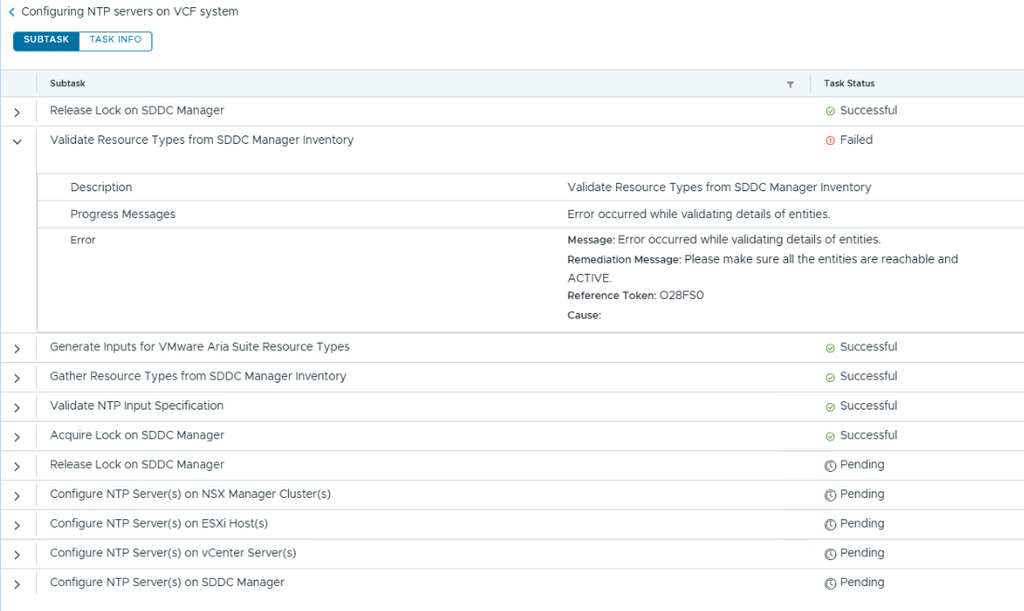
Nevertheless, SDDC Manager may fail to validate the host because its registered identity does not match the hostname configured directly on the ESXi system.
Identifying the Failed Task in SDDC Manager
The first step in troubleshooting is to examine the task details in the SDDC Manager interface.
When an NTP configuration operation fails, administrators can review the task named:
Configuring NTP servers on VCF systemExpanding the task reveals the individual subtasks executed during the configuration process.
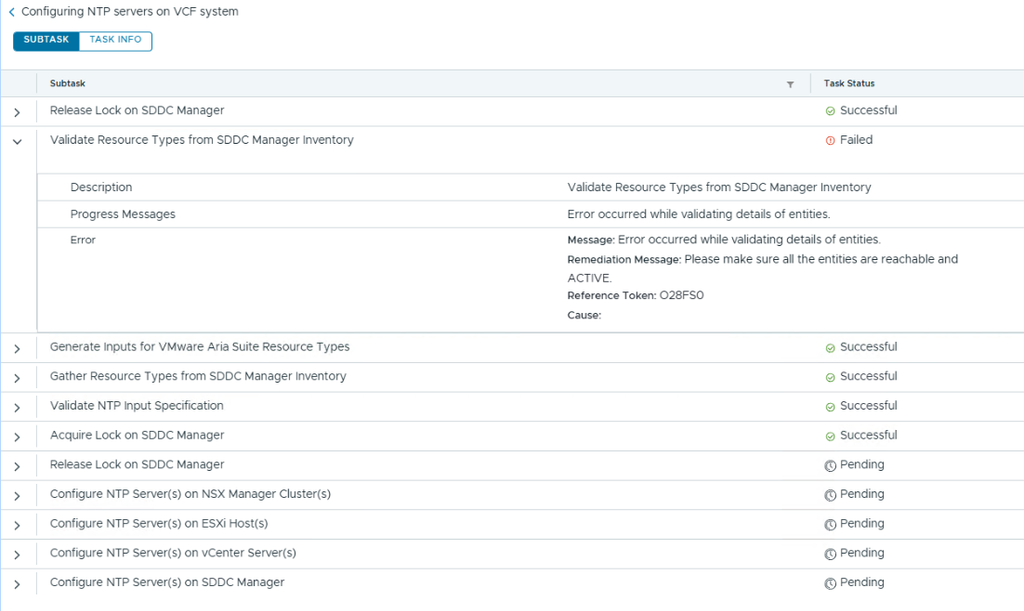
Based on the provided screenshot, the workflow shows the following results:
| Subtask | Status |
|---|---|
| Acquire Lock on SDDC Manager | Successful |
| Validate NTP Input Specification | Successful |
| Gather Resource Types from SDDC Manager Inventory | Successful |
| Generate Inputs for VMware Aria Suite Resource Types | Successful |
| Validate Resource Types from SDDC Manager Inventory | Failed |
| Configure NTP Server(s) on SDDC Manager | Pending |
| Configure NTP Server(s) on vCenter Server(s) | Pending |
| Configure NTP Server(s) on ESXi Host(s) | Pending |
| Configure NTP Server(s) on NSX Manager Cluster(s) | Pending |
The critical failure occurs during:
Validate Resource Types from SDDC Manager Inventory
This indicates that the initial NTP input validation completed successfully, but SDDC Manager could not validate one or more managed infrastructure entities.
As a result, the remaining NTP configuration tasks do not proceed.
Rather than immediately modifying the NTP server configuration, administrators should investigate the inventory and operational status of the managed ESXi hosts.
Root Cause: ESXi Hostname and FQDN Mismatch
VMware Cloud Foundation uses SDDC Manager to maintain a centralized inventory of infrastructure components.
Each ESXi host is registered with a specific FQDN that identifies the host within the management environment.
For example, an ESXi host may be registered in SDDC Manager as:
esxi01.example.localHowever, the hostname configured directly on the ESXi host may be:
esxi01.old-domain.localThis inconsistency can prevent SDDC Manager from properly identifying the host or validating its operational state during the NTP configuration workflow.
Even though the host may appear connected and healthy in vCenter Server, SDDC Manager can report an entity validation failure.
Common circumstances that may lead to this issue include previous hostname changes, incomplete DNS updates, incorrectly configured host domains, or inconsistencies introduced during infrastructure deployment and migration.
Therefore, verifying hostname consistency between ESXi and SDDC Manager is an important troubleshooting step.
Examining SDDC Manager Logs
To identify the affected ESXi host and understand why validation failed, administrators should examine the Operations Manager logs on SDDC Manager.
Connect to the SDDC Manager appliance through SSH using an authorized administrative account.
The relevant log file is located at:
/var/log/vmware/vcf/operationsmanager/operationsmanager.logTo monitor new log entries in real time, execute:
tail -f /var/log/vmware/vcf/operationsmanager/operationsmanager.logTo search for messages related to host maintenance mode or entity validation failures, use:
grep -Ei \
"maintenance|Entity state validation failed|validating details" \
/var/log/vmware/vcf/operationsmanager/operationsmanager.log
Example error messages
The following entries may appear in the Operations Manager logs:
ERROR SystemConfiguratorEntitiyStateValidator

Error occurred while checking the maintenance
mode state for the host <ESXi Host FQDN>.

com.vmware.vcf.systemconfigurator.error.
SystemConfiguratorException:

Host <ESXi Host FQDN> is in MAINTENANCE mode
Additional messages may include:
Entity state validation failed

SystemConfiguratorException:

Error occurred while checking the
maintenance mode state for the host
<ESXi Host FQDN>.
These messages indicate that SDDC Manager encountered a problem while checking the ESXi host’s maintenance mode status.
There are two main possibilities:
- The ESXi host is genuinely operating in maintenance mode.
- The ESXi host is operational, but its DNS/FQDN information is inconsistent, preventing SDDC Manager from completing the validation.
Determining which condition applies is essential before making configuration changes.
Verifying the ESXi Hostname and FQDN
The next step is to compare the hostname configured directly on the ESXi host with the FQDN recorded in SDDC Manager.
Step 1: Connect to the ESXi host
Establish an SSH connection to the affected ESXi host using an account with sufficient administrative privileges.
Execute:
esxcli system hostname getExample output:
Domain Name: example.local
Fully Qualified Domain Name: esxi01.example.local
Host Name: esxi01
The command displays three important values:
Host Name: The short hostname assigned to the ESXi server.
Domain Name: The DNS domain associated with the host.
Fully Qualified Domain Name: The complete hostname, including the DNS domain.
The Fully Qualified Domain Name is particularly important because it should match the identity registered in SDDC Manager.
Step 2: Verify the FQDN in SDDC Manager
Log in to the SDDC Manager interface and navigate to:
Inventory → Hosts → All Hosts
Locate the affected ESXi host and examine its FQDN value.
Compare the value with the output of:
esxcli system hostname getFor example:
| Source | FQDN |
|---|---|
| SDDC Manager Inventory | esxi01.example.local |
| ESXi Host Configuration | esxi01.old-domain.local |
| Validation Result | Mismatch |
If the values differ, the inconsistency should be investigated before attempting another NTP configuration operation.
It is important to determine which hostname is correct and ensure that any necessary changes follow the supported procedures for the deployed VCF and ESXi versions.
Validating the Host Through the ESXi Managed Object Browser
VMware Managed Object Browser (MOB) provides a web-based interface for examining managed objects and invoking selected vSphere API methods.
It can be used to perform additional checks when investigating DNS-related host identification issues.
MOB may be disabled by default for security reasons and should only be enabled when required for troubleshooting.
Step 1: Access the Managed Object Browser
Open a web browser and navigate to:
https://<ESXi-FQDN>/mob/?moid=ha-searchindex&method=findByDnsNameReplace <ESXi-FQDN> with the actual DNS name of the affected ESXi host.
The page displays the FindByDnsName method associated with the SearchIndex managed object.
Step 2: Configure the search parameters
The method requires the following parameters:
| Parameter | Description | Example |
|---|---|---|
| datacenter | Optional Datacenter managed object reference | Leave empty |
| dnsName | FQDN of the ESXi host being searched | esxi01.example.local |
| vmSearch | Determines whether the search targets virtual machines | false |
Enter the appropriate values and select Invoke Method.
The method attempts to locate the managed entity using the specified DNS name.
If the expected managed object cannot be found, administrators should investigate the DNS name, inventory information, and availability of the relevant management interfaces.
A failed or empty lookup does not, by itself, conclusively establish an FQDN mismatch. It should be evaluated alongside the ESXi hostname configuration and SDDC Manager logs.
Correcting the ESXi Hostname and FQDN
If troubleshooting confirms that the FQDN configured on the ESXi host is incorrect, the hostname and domain information may need to be updated.
Before performing this operation, consider the potential impact on vCenter Server registration, certificates, distributed networking, management connectivity, and any vSAN configuration.
Important: Changing the hostname or FQDN of an ESXi host managed by VMware Cloud Foundation should not be treated as a routine, risk-free operation. In production environments, follow a version-specific, supported change procedure and perform the necessary impact assessment before making modifications.
Updating the FQDN
As part of an approved and supported remediation procedure, the ESXi hostname can be configured using:
esxcli system hostname set --fqdn=esxi01.example.localAlternatively, the hostname and DNS domain can be specified separately:
esxcli system hostname set \
--host=esxi01 \
--domain=example.local
After the change, verify the configuration:
esxcli system hostname getConfirm that the displayed Fully Qualified Domain Name matches the intended hostname.
If required, update the associated DNS A and PTR records through the organization’s DNS management process.
Any changes to the host identity in vCenter Server or the VCF inventory should be performed only through procedures supported for the environment.
Verifying DNS Resolution and Network Connectivity
Even when the ESXi hostname is configured correctly, incorrect DNS records or communication restrictions may cause similar validation problems.
For this reason, it is recommended to validate DNS resolution and network connectivity between SDDC Manager, vCenter Server, ESXi hosts, and the configured NTP servers.
Check the DNS servers configured on ESXi
Execute:
esxcli network ip dns server listVerify that the listed DNS servers are correct and accessible.
Validate forward DNS resolution
From an appropriate management system with DNS diagnostic tools installed, execute:
nslookup esxi01.example.localConfirm that the hostname resolves to the expected ESXi management IP address.
Validate reverse DNS resolution
Execute:
nslookup 192.168.10.21The returned hostname should correspond to the expected FQDN of the ESXi host.
Reverse DNS consistency is particularly useful when troubleshooting host identification problems.
Verify network communication
Ensure that the relevant infrastructure components can communicate over the required protocols.
Important traffic includes DNS over TCP/UDP 53, NTP over UDP 123, and the management communication ports required by the VCF environment.
ICMP connectivity checks may also help identify basic network reachability problems. However, successful ping responses do not necessarily confirm that DNS or NTP services are functioning correctly.
Reconfiguring NTP Through SDDC Manager
After resolving the FQDN inconsistency and confirming that the ESXi host can be validated successfully, the NTP configuration operation can be repeated.
Administrators can configure NTP through either the SDDC Manager interface or the VMware Cloud Foundation API.
Option 1: Configure NTP through the SDDC Manager interface
Log in to the SDDC Manager management interface and navigate to:
Administration → Network Settings → NTP Configuration → Edit
Enter the required NTP server details and save the configuration.
SDDC Manager initiates the appropriate validation and configuration workflow for the managed infrastructure components.
Monitor the task until all required subtasks complete successfully.
After completion, verify that the NTP configuration has been applied and that the relevant components are synchronizing their clocks correctly.
Option 2: Configure NTP through the VMware Cloud Foundation API
For environments where configuration tasks are automated, the SDDC Manager API provides an alternative method for managing NTP settings.
Open the Developer Center within SDDC Manager.
First, submit a validation request using the applicable API endpoint:
POST /v1/system/ntp-configuration/validationsExample JSON request body:
{
  "ntpServers": [
    {
      "ipAddress": "192.168.10.10"
    },
    {
      "ipAddress": "192.168.10.11"
    }
  ]
}
Replace the example IP addresses with the actual NTP servers used in the environment.
The validation request may return an identifier that can be used to check the validation result:
GET /v1/system/ntp-configuration/validations/{id}A successful validation should indicate that the execution has completed and the validation result has succeeded.
Once the validation completes successfully, the configuration can be applied using the appropriate NTP configuration API:
PUT /v1/system/ntp-configurationThe same NTP server specification can be supplied in the request body.
If the API returns 202 Accepted, this indicates that the request has been accepted for processing. It does not necessarily mean that the operation has finished successfully.
Administrators should monitor the corresponding task until the configuration is completed.
The current NTP configuration can also be retrieved through:
GET /v1/system/ntp-configurationAPI paths, request formats, and authentication requirements should always be verified against the documentation for the deployed VCF version.
Additional Cause: ESXi Host in Maintenance Mode
An NTP configuration failure may also occur when one or more ESXi hosts are genuinely operating in maintenance mode.
In this scenario, SDDC Manager may report:
Host <ESXi Host FQDN> is in MAINTENANCE modeThe first step is to identify the affected ESXi host from the Operations Manager logs.
Next, access vCenter Server and verify the host’s maintenance mode status.
If the host is in maintenance mode, determine whether the state is associated with an active maintenance activity, infrastructure upgrade, hardware intervention, or another planned operation.
If the maintenance activity has been completed and it is operationally appropriate to return the host to service, use:
vCenter Server → Hosts and Clusters → ESXi Host → Maintenance Mode → Exit Maintenance Mode
After the host exits maintenance mode, repeat the NTP configuration.
However, administrators should never force a host out of maintenance mode without confirming that doing so will not interfere with ongoing operations.
This is particularly important in vSAN environments, where maintenance operations may affect data availability and resynchronization activities.
Post-Resolution Validation and Best Practices
Once the NTP configuration workflow completes successfully, administrators should perform additional checks to confirm that time synchronization is functioning consistently across the VMware Cloud Foundation environment.
Recommended validation activities include:
- Confirming that ESXi hosts are reachable and registered as active in the SDDC Manager inventory.
- Verifying that the configured FQDN values are consistent across ESXi, vCenter Server, and SDDC Manager.
- Ensuring that forward and reverse DNS resolution return the expected results.
- Confirming connectivity to the configured NTP servers.
- Verifying that NTP services are running and time synchronization is operating correctly on ESXi hosts.
- Checking that SDDC Manager tasks have completed without additional validation errors.
- Reviewing relevant infrastructure logs to ensure that no recurring entity validation issues remain.
For production environments, using multiple reliable and reachable NTP servers is recommended to improve availability and reduce dependency on a single time source.
It is also advisable to maintain consistent DNS naming conventions throughout the infrastructure lifecycle and to validate hostname configurations whenever hosts are deployed, migrated, or reconfigured.
NTP configuration failures in VMware Cloud Foundation environments are not always caused by unreachable or incorrectly configured NTP servers.
When the configuration process fails during the Validate Resource Types from SDDC Manager Inventory stage, the underlying problem may be an inconsistency between the ESXi host’s configured FQDN and the hostname registered in SDDC Manager.
By reviewing the Operations Manager logs, examining ESXi hostname settings, comparing inventory records, and using the Managed Object Browser for additional verification, administrators can identify the source of the validation failure.
Once DNS/FQDN inconsistencies have been resolved through an appropriate, supported procedure, and the operational status of the affected hosts has been verified, NTP configuration can be attempted again.
Maintaining consistent hostname information, accurate DNS records, reliable network connectivity, and properly synchronized infrastructure components is essential for the long-term stability and manageability of VMware Cloud Foundation environments.
References :
https://knowledge.broadcom.com/external/article/397592/error-failed-to-validate-ntp-configurati.html
https://knowledge.broadcom.com/external/article/340046/the-managed-object-browser-is-disabled-b.html
https://developer.broadcom.com/xapis/vmware-cloud-foundation-api/latest/system
https://knowledge.broadcom.com/external/article/397253/sddc-manager-log-location-and-purpose.html