![[EN] Enabling and Managing Universe and Multiverse Repositories in Ubuntu](https://kadirkozan.com/wp-content/uploads/2026/03/27ce25e0-1b0e-475e-9233-d088f6756076-1024x683.png)

In Ubuntu-based systems, software installation, update management, and security patch delivery are all handled largely through package repositories.
This structure allows the operating system to install required software from centralized and trusted sources in a controlled manner. It also helps system administrators manage package origin and support level more clearly.
However, many Ubuntu users encounter “package not found” type errors when trying to install a specific application. In most cases, this is not caused by a typo in the package name, but by the fact that the repository containing that package has not yet been enabled.
Among the most common examples are the Universe and Multiverse repositories, which contain many useful packages but may not always be active by default, or may need to be managed manually depending on the environment.
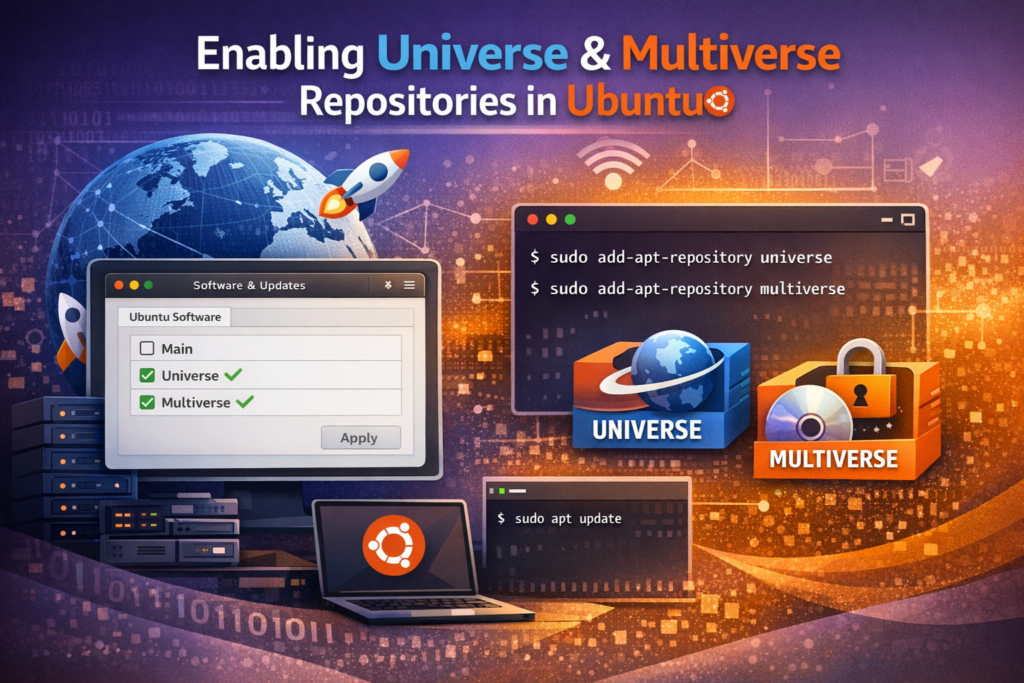
In this article, we will take a technical look at Ubuntu’s repository structure, explain the purpose of the Universe and Multiverse repositories, and walk through how to enable or disable them both through the graphical interface and from the command line.
Understanding Ubuntu’s Repository Structure
In Ubuntu, software is not normally downloaded and installed from random internet sources. Instead, the system retrieves packages from defined official or community-maintained repositories. This approach provides major advantages in terms of both security and version consistency.
Ubuntu’s standard package ecosystem is organized into four primary repository categories:
Main
The Main repository contains packages that are officially supported and maintained by Canonical.
These packages typically include Ubuntu’s core system components, essential user-space tools, and the main software required for a stable base installation.
Since security updates and bug fixes are provided directly under Canonical support, this repository is considered one of the most reliable sources for production environments.
Universe
The Universe repository is a large collection of software maintained by the Ubuntu community.
The packages found here are generally free and open-source, but they are not covered by Canonical’s official commercial support in the same way as the Main repository.
That said, Universe contains a wide range of useful tools for developers, administrators, and desktop users alike.
Many helper utilities, libraries, development packages, and optional software components are located here, which makes the Universe repository highly valuable in day-to-day Ubuntu usage.
Restricted
The Restricted repository contains packages that are required for certain hardware devices that cannot be fully supported with open-source drivers alone.
This often includes proprietary drivers for graphics cards, wireless adapters, and other manufacturer-specific hardware components.
Multiverse
The Multiverse repository contains software that may be subject to copyright, patent, licensing, or legal distribution restrictions.
Technically, these packages can still be used, but their redistribution or usage rights may vary depending on the country, organization, or specific licensing terms.
For this reason, Multiverse should be evaluated more carefully, especially in corporate or regulated environments.
Why Are Universe and Multiverse Repositories Important?
Although Ubuntu’s default installation is sufficient for most basic use cases, standard repositories may not always include the software needed for more advanced, specialized, or compatibility-driven tasks. This is where Universe and Multiverse become important.
For example, these repositories may contain:
- community-maintained utilities
- additional system administration tools
- development environments and dependencies
- certain media codecs and playback components
- third-party software packages with licensing limitations
When a user runs a command such as apt install package-name and the system fails to locate the requested package, one of the first things to verify is which repository that package belongs to. In many cases, the missing piece is not the package itself, but the fact that the repository providing it is not enabled.
What to Know Before You Begin
Adding, removing, or modifying package repositories is a system-wide administrative task. For that reason, you need sudo privileges, or administrative rights, to perform these operations.
If your account does not have sufficient permissions, the commands discussed below will return authorization errors. In such cases, you will need assistance from your system administrator.
It is also important to understand that after enabling or disabling a repository, the package index should be refreshed. Even if a repository is added successfully, the system will not immediately recognize the packages it provides until the local apt cache is updated.
Method 1: Enabling Universe and Multiverse Through Software & Updates
For users working in a desktop environment, one of the easiest ways to manage repositories is through the Software & Updates tool. This method is especially useful for those who prefer a graphical interface over the command line.
Make Sure the Required Tool Is Installed
On some minimal Ubuntu installations or server-based deployments, this utility may not be installed by default. In that case, you can install it by updating the package list first and then installing the required GUI component:
sudo apt update
sudo apt install software-properties-gtk
The first command refreshes the package metadata from the currently configured sources. The second installs the graphical package source management tool.
Open the Software & Updates Application
Once installed, launch Software & Updates from the applications menu. When the window opens, it will display several tabs showing which software sources Ubuntu is currently using.
Review the Ubuntu Software Tab
Under this tab, you will see the main repository options available on the system. These usually include entries such as:
- Canonical-supported free and open-source software
- Community-maintained free and open-source software (Universe)
- Proprietary drivers for devices (Restricted)
- Software restricted by copyright or legal issues (Multiverse)
To enable Universe and Multiverse, simply check the corresponding boxes. To disable them, uncheck those same options.
Save the Changes
After modifying the repository settings, the system may prompt you for your administrator password. Once confirmed, Ubuntu will reload the package sources and refresh its package database.
This method is particularly helpful for users who want a visual confirmation of the changes they are making, and it reduces the likelihood of accidental configuration mistakes.
Method 2: Managing Repositories with the add-apt-repository Command
For users who prefer the terminal, and especially for system administrators, one of the fastest and most controlled methods is the add-apt-repository utility. This command updates Ubuntu’s package source configuration files and triggers the necessary repository refresh operations.
Its main advantage is that it works particularly well on remote systems, headless servers, or environments where no graphical interface is available.
Enabling the Universe Repository
sudo add-apt-repository universeThis command adds the Universe repository to the system’s active package sources. If the system asks for confirmation, press Enter to continue.
Enabling the Multiverse Repository
sudo add-apt-repository multiverseThis command activates the Multiverse repository in the same way.
In many cases, these commands automatically trigger a package index refresh. However, to ensure everything has been applied correctly, it is still considered good practice to run:
sudo apt updateThis makes sure the newly enabled repositories are fully recognized by the package manager.
What Does add-apt-repository Actually Do in the Background?
From a technical perspective, the add-apt-repository command updates the files that define Ubuntu’s package sources. On Ubuntu systems, repository definitions are typically stored in the following locations:
/etc/apt/sources.list
/etc/apt/sources.list.d/
This structure tells the system which repositories to query when searching for packages. Once a repository is added, apt scans the new source and updates the available software list accordingly.
One important detail to remember is this: even if the repository entry is successfully added to the system, the package manager may not immediately recognize packages from that source until apt update is executed. That is why refreshing the package index remains a critical step.
Disabling Universe and Multiverse Repositories
In some environments, security policies, licensing requirements, or standardization efforts may require certain repositories to be disabled. In such cases, the -r option of the add-apt-repository command is used to remove them.
Removing the Universe Repository
sudo add-apt-repository -r universeRemoving the Multiverse Repository
sudo add-apt-repository -r multiverseThese commands remove the corresponding repository entries from the system configuration.
After that, it is recommended to refresh the package list again.
sudo apt updateHow to Verify That the Operation Was Successful
You should not rely solely on terminal output to confirm whether a repository has been enabled or disabled. It is a good practice to verify the repository configuration directly from the system.
For example, you can search the main sources file for the relevant entries:
grep -E "universe|multiverse" /etc/apt/sources.listOn some newer Ubuntu releases, repository definitions may also be stored in separate files under the sources.list.d directory. In that case, you can use:
grep -R "universe\|multiverse" /etc/apt/sources.list.d/If the output contains the expected repository definitions, then the repositories are configured on the system.
Another practical way to confirm success is to retry installation of a package that was previously unavailable. If the package can now be located, the required repository is most likely active.
Which Method Is Better?
In practice, both methods lead to the same result. The difference lies mainly in workflow and management style.
The Software & Updates method:
- provides a visual interface
- reduces the risk of accidental misconfiguration
- is more comfortable for desktop users
The add-apt-repository method:
- is better suited for server environments
- works well over SSH and remote administration
- is ideal for automation and scripting
For teams managing multiple Ubuntu systems, the command-line approach is usually more scalable because it can be integrated into automation tools, shell scripts, and configuration management workflows.
Security and Support Considerations
Although enabling Universe and Multiverse is technically straightforward, repository selection in enterprise environments should not be based solely on convenience. It should also be evaluated from the perspective of security, supportability, and compliance.
Packages in the Universe repository are maintained by the community, which means they are not always covered under Canonical’s commercial support model in the same way as packages in Main. On the Multiverse side, licensing and redistribution terms may require closer review before use.
Before installing software from these repositories in a production environment, it is wise to ask the following questions:
- Which repository does the package come from?
- How regularly are security updates published for it?
- Is its license suitable for corporate or commercial use?
- Is the package truly necessary, or is there a safer alternative?
This kind of structured evaluation helps improve long-term system stability, security, and maintainability.
Enabling the Universe and Multiverse repositories in Ubuntu significantly expands the range of software available to the system. These repositories become especially important when you need community-maintained tools, additional dependencies, or packages that fall outside the standard supported software set.
In this article, we examined Ubuntu’s core repository structure, explained what Universe and Multiverse represent, and covered how to manage them both through the graphical interface and with the add-apt-repository command.
Proper repository management is not just about making software installation easier. It also plays a major role in system security, update continuity, and operational control. For system administrators in particular, understanding and managing package sources carefully is a fundamental part of maintaining a stable and well-governed Ubuntu environment.

![[TR] Ubuntu’da Universe ve Multiverse Repoların Etkinleştirmesi ve Yönetilmesi](https://kadirkozan.com/wp-content/uploads/2026/03/27ce25e0-1b0e-475e-9233-d088f6756076-150x150.png)