![[EN] How to Install NVIDIA Drivers on Ubuntu 24.04](https://kadirkozan.com/wp-content/uploads/2026/03/27ce25e0-1b0e-475e-9233-d088f6756076-1024x683.png)

For users running Ubuntu 24.04 with an NVIDIA graphics card, installing the correct driver is an important step in getting the best possible performance from the system. Although Ubuntu comes with the Nouveau open-source driver by default, it usually cannot deliver the same level of performance and compatibility as the official NVIDIA drivers.
If you use your system for gaming, 3D rendering, video editing, AI workloads, or any GPU-accelerated application, installing the proprietary NVIDIA driver is highly recommended. In this article, we will walk through how to install NVIDIA drivers on Ubuntu 24.04 step by step.
Why Install the NVIDIA Driver?
The Nouveau driver included with Ubuntu can handle basic display tasks, and for lightweight desktop use it may be sufficient. However, it is not designed to fully unlock the capabilities of NVIDIA hardware.
Installing the official NVIDIA driver provides several important benefits:
- Better graphics performance
- Improved compatibility with modern applications
- Support for CUDA-based workloads
- More stable gaming and rendering performance
- Better multi-monitor and resolution handling
- Enhanced support for professional tools such as Blender, OBS Studio, and DaVinci Resolve
In short, if you want to get the most out of your NVIDIA graphics card, installing the proper driver is essential.
Before You Begin
The following steps require administrative privileges. If your account does not have sudo access, you will need assistance from your system administrator.
It is also recommended to make sure your system has an active internet connection, since the required packages will be downloaded from Ubuntu’s official repositories.
Update the Package List
Before installing any driver package, it is a good idea to refresh the local package index. Open a terminal and run:
sudo apt updateThis command updates the package information from the configured repositories and ensures that Ubuntu can see the latest available versions.
Check Available NVIDIA Driver Versions
Ubuntu 24.04 provides multiple NVIDIA driver versions through its standard repositories. To see which versions are available, run:
apt search nvidia-driverThis command will display a list of available packages, such as:
nvidia-driver-535nvidia-driver-545nvidia-driver-550
The most suitable version depends on your GPU model and your use case. In most environments, choosing a stable version from the official Ubuntu repositories is the safest approach.
Install the NVIDIA Driver
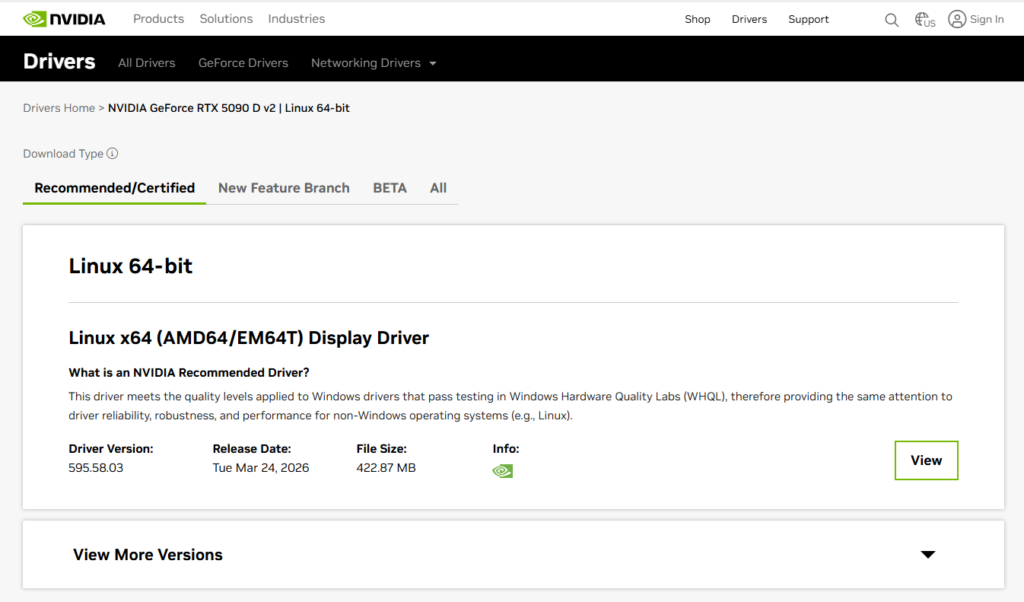
For example, if you want to install version nvidia-driver-595, use the following command:
sudo apt install nvidia-driver-595Ubuntu will automatically install the required dependencies along with the driver package. Depending on your system and internet speed, the installation may take a few minutes.
During this process, kernel modules, graphics libraries, and supporting tools are installed so that the GPU can be used not only for display output, but also for hardware acceleration and high-performance workloads.
Reboot the System
Once the installation is complete, reboot the system so the new driver can be loaded properly:
sudo rebootAfter the reboot, Ubuntu should start using the installed NVIDIA driver instead of the default Nouveau driver.
Verify the Installation
After the system comes back online, you can verify that the NVIDIA driver is active by running:
nvidia-smiIf the installation was successful, this command will display information such as:
- GPU model
- Installed driver version
- GPU temperature
- Memory usage
- Running GPU processes
If this command returns an error, the driver may not have been loaded correctly, or the system may still be using another graphics driver.
Nouveau vs Official NVIDIA Driver
A common point of confusion for Ubuntu users is the difference between the default Nouveau driver and the official NVIDIA driver.
Nouveau is open-source and works out of the box, which makes it convenient for basic usage. However, it has limitations when it comes to performance and advanced GPU features.
The official NVIDIA driver is generally the better choice for:
- 3D acceleration
- Gaming
- GPU rendering
- CUDA and AI frameworks
- Professional graphics and compute applications
That is why users working with demanding graphical or computational tasks should strongly consider switching to the official NVIDIA driver.
Some Applications May Require Additional Configuration
Installing the driver is usually enough to make the GPU available to the system, but certain applications may still require additional configuration.
For example, in Blender, you may need to manually enable GPU acceleration after the driver is installed. This is typically done from:
- Edit > Preferences > System
- Enable CUDA, OptiX, or the appropriate GPU backend
- Set the render device to GPU instead of CPU
Other GPU-accelerated tools, such as AI frameworks, video editing applications, or rendering software, may also require extra packages or manual settings depending on the workflow.
Common Issues to Be Aware Of
Although the installation process is generally straightforward, some systems may encounter issues such as:
- Black screen after reboot
- Installing an incompatible driver version
- Conflicts caused by old driver remnants
- Secure Boot preventing the driver from loading
- Extra configuration requirements on laptops with hybrid graphics
Hybrid systems, especially laptops using both Intel and NVIDIA graphics, may need additional setup for proper GPU switching and power management.
Installing NVIDIA drivers on Ubuntu 24.04 is an important step if you want to fully utilize the power of your graphics card. While the default Nouveau driver is enough for basic display functionality, it usually falls short in performance-heavy scenarios.
The overall process is simple: update the package list, check which NVIDIA driver versions are available, install the appropriate package, and reboot the system. After that, you can verify the installation using nvidia-smi.
If you rely on applications such as Blender, CUDA-based tools, or any graphics-intensive workload, having the correct NVIDIA driver installed will significantly improve both performance and compatibility.

![[TR] Ubuntu 24.04 Üzerinde NVIDIA Sürücüsü Kurulumu Nasıl Yapılır?](https://kadirkozan.com/wp-content/uploads/2026/03/27ce25e0-1b0e-475e-9233-d088f6756076-150x150.png)