![[EN] How to Install CPU-X as a CPU-Z Alternative on Ubuntu 24.04](https://kadirkozan.com/wp-content/uploads/2026/03/27ce25e0-1b0e-475e-9233-d088f6756076-1024x683.png)

When it comes to viewing hardware information on Linux systems, command-line tools are usually the first choice. Utilities such as lscpu, dmidecode, lshw, and inxi can provide detailed technical data about the system. However, not every user prefers working in the terminal.
For those who want to inspect processor, memory, motherboard, and graphics details through a graphical interface, GUI-based tools offer a far more practical experience.
On Windows, one of the most well-known utilities for this purpose is CPU-Z. Since CPU-Z is not officially available for Linux, Ubuntu users need a reliable alternative that offers similar functionality. This is exactly where CPU-X comes in.
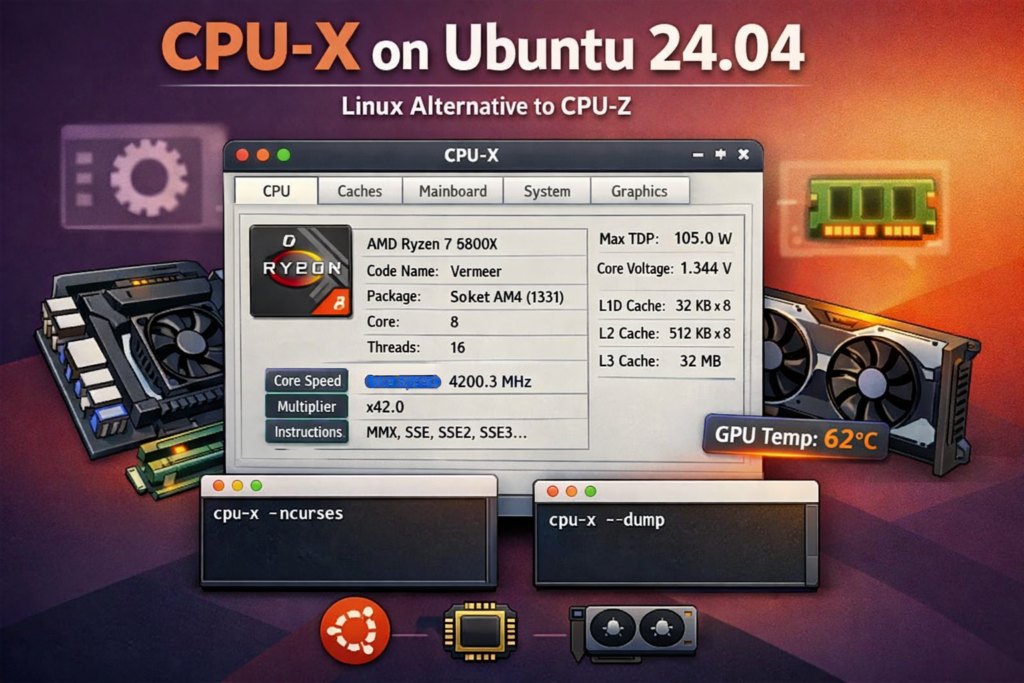
CPU-X is a free and open-source hardware information tool designed for Linux-based operating systems. In terms of appearance and functionality, it closely resembles CPU-Z and provides detailed insight into the major hardware components of your system.
Distributed under the GNU GPL v3 license, CPU-X is a practical solution for desktop users, system administrators, and hardware enthusiasts alike.
In this article we will walk through how to install CPU-X on Ubuntu 24.04, what kind of information it provides, and how to use it effectively.
What Is CPU-X?
CPU-X is a system profiling application that analyzes your hardware components and displays the results either through a graphical interface or directly in the terminal. It allows users to view detailed information about key system components, including:
- CPU model, core count, and frequency information
- L1, L2, and L3 cache details
- Motherboard and chipset information
- BIOS details
- Operating system information
- Total and used memory
- Graphics card model, vendor, and in some cases temperature and clock data
One of the main advantages of CPU-X is that it gathers all this information into a single, easy-to-navigate interface. Instead of running multiple commands, users can review hardware details through organized tabs in one application window.
What Information Can You View with CPU-X?
CPU-X separates system data into different tabs, making it easier to inspect each hardware category individually. The most important sections are outlined below.
CPU Information
This section provides detailed data about your processor, such as:
- CPU vendor
- Model name
- Number of cores and threads
- Current clock speed
- Supported instruction sets
- Microarchitecture details
This tab is especially useful for users who want to verify processor specifications or monitor performance-related information.
Cache Information
CPU-X also displays the processor’s cache structure, including:
- L1 Cache
- L2 Cache
- L3 Cache
These details are important for understanding how efficiently the processor handles frequently accessed data.
Motherboard Information
In this section, you can find information related to the system board, including:
- Motherboard manufacturer
- Model information
- Chipset details
- BIOS vendor and version
This is particularly helpful when checking hardware compatibility or preparing for BIOS updates.
System Information
The system tab provides an overview of your operating environment, such as:
- Linux distribution
- Kernel version
- System architecture
- Memory usage
It is a useful section for obtaining a quick summary of the operating system and resource usage.
Graphics Information
CPU-X can also display certain technical details about the graphics adapter, including:
- GPU vendor
- Model name
- GPU clock speed
- Memory clock speed
- Temperature data
Depending on the graphics driver and hardware support, the amount of information shown in this section may vary.
Installing CPU-X on Ubuntu 24.04
CPU-X is available directly through the standard Ubuntu repositories, which makes installation simple and convenient. There is no need to add a third-party PPA or download external packages manually.
Before installing any package, it is recommended to refresh the package index. Open a terminal and run the following command:
sudo apt updateThis step ensures that your system retrieves the latest package information from the configured repositories.
Once the update is complete, install CPU-X with the following command:
sudo apt install cpu-xAfter the installation finishes, CPU-X will be ready to use on your system.
How to Launch CPU-X
Once installed, you can launch CPU-X from your desktop environment’s application menu. Simply search for CPU-X in the application launcher and open it.
When the application starts, you will see multiple tabs dedicated to different hardware categories. By switching between these tabs, you can examine detailed technical information about your processor, memory, motherboard, operating system, and graphics hardware.
CPU-X can be particularly useful in scenarios such as:
- Creating a hardware inventory
- Identifying CPU and motherboard models
- Checking cache and memory structure
- Reviewing graphics adapter details
- Gathering system information before technical support or troubleshooting
Using CPU-X from the Terminal
Although CPU-X is primarily known for its graphical interface, it can also be used directly from the terminal. This makes it a flexible tool for users working on remote systems or in environments without a desktop session.
Run CPU-X in Text-Based Interface Mode
If you want to use CPU-X in a terminal-based interactive mode, run:
cpu-x --ncursesThis command launches CPU-X using an ncurses interface, allowing you to navigate hardware details without needing a graphical desktop environment.
Print a Summary in Standard Output
If you only need a quick summary of your system information in plain terminal output, use:
cpu-x --dumpThis command is especially helpful when collecting system data for scripts, inventory reports, or technical support purposes.

![[TR] Ubuntu 24.04 Üzerinde CPU-X Kurulumu ve Kullanımı](https://kadirkozan.com/wp-content/uploads/2026/03/27ce25e0-1b0e-475e-9233-d088f6756076-150x150.png)