

Introduction
Google Chrome implements strict security mechanisms to protect users from potentially unsafe websites. One of these mechanisms is SSL/TLS certificate validation, which ensures that HTTPS connections are encrypted and that the identity of the remote server can be verified.
However, system administrators, IT professionals, and software developers frequently encounter certificate validation errors when accessing internal web applications, development environments, or servers using self-signed certificates.
In some cases, Chrome allows users to bypass certificate warnings by selecting Advanced → Proceed to website (unsafe).
However, when a website is protected by HTTP Strict Transport Security (HSTS), this option may not be available.
Fortunately, certain versions of Google Chrome provide a hidden keyboard shortcut, thisisunsafe, that can bypass some certificate warning screens.
This article explains how HSTS works, why Chrome blocks access to websites with invalid certificates, how the thisisunsafe method works, and which alternatives are recommended for production environments.
Understanding SSL/TLS Certificate Errors in Google Chrome
HTTPS uses TLS encryption to protect communications between a web browser and a web server.
For an HTTPS connection to be considered trusted, the server must present a valid certificate that can be verified by the browser.
Chrome may display the following warning when certificate validation fails:
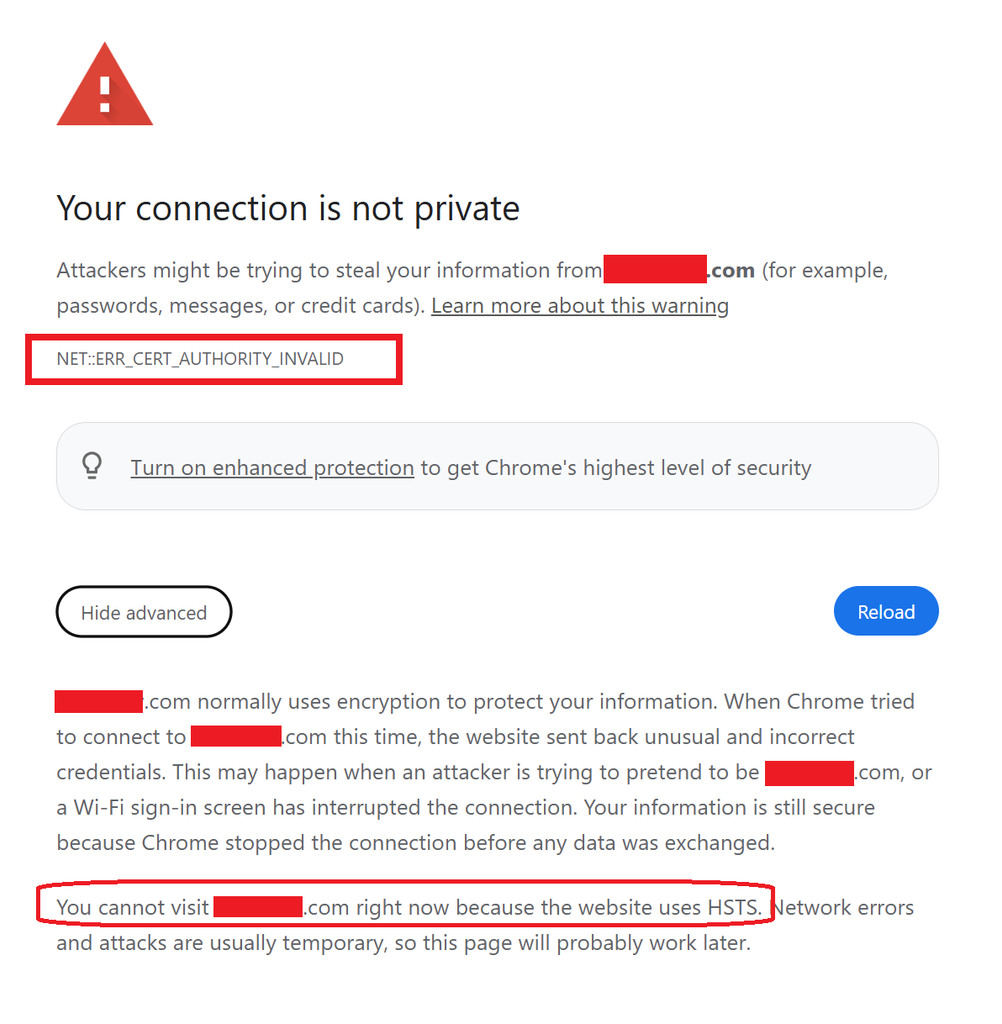
Your connection is not private
Common causes include:
- Expired SSL/TLS certificates.
- Self-signed certificates.
- Certificates issued by untrusted certificate authorities.
- Certificate hostname mismatches.
- Missing or incorrectly configured intermediate certificates.
- Incorrect system date and time.
- SSL inspection performed by corporate firewalls or proxy servers.
For example, consider an internal web application running at:
https://server.example.localIf the server uses a self-signed certificate that is not trusted by the client computer, Chrome may display:
NET::ERR_CERT_AUTHORITY_INVALIDThis error indicates that Chrome cannot establish a trusted certification path for the server certificate.
What Is HTTP Strict Transport Security (HSTS)?
HTTP Strict Transport Security (HSTS) is a browser security mechanism that instructs browsers to communicate with a website exclusively over HTTPS.
A web server can enable HSTS by returning the following HTTP response header:
Strict-Transport-Security: max-age=31536000; includeSubDomainsThe header contains two important directives:
max-age=31536000
Specifies how long the browser should enforce the HSTS policy, measured in seconds. In this example, the policy remains active for approximately one year.
includeSubDomains
Extends the HSTS policy to subdomains of the specified domain.
Once a browser recognizes an HSTS policy, it automatically upgrades subsequent HTTP requests to HTTPS.
More importantly, HSTS prevents users from bypassing certain certificate validation errors through the normal browser interface.
This behavior helps protect users against downgrade attacks and man-in-the-middle (MITM) attacks.
Why Does Chrome Hide the “Proceed to Website (Unsafe)” Option?
When Chrome encounters a certificate error on a website without an applicable HSTS policy, it may offer an option similar to:
Advanced → Proceed to website (unsafe)This option allows users to continue despite the security warning.
However, when HSTS is enforced, Chrome may display a message such as:
You cannot visit this website right now
because the website uses HSTS.
In this situation, the normal bypass option is unavailable.
Chrome can determine whether HSTS applies to a website through several mechanisms.
Dynamic HSTS
The browser learns the HSTS policy from a previously received Strict-Transport-Security response header.
HSTS Preload List
Certain domains are included in a predefined HSTS preload list distributed with the browser.
These domains are protected even before the browser establishes its first connection.
Inherited HSTS Policies
A subdomain may also be protected when its parent domain has an active HSTS policy with the includeSubDomains directive.
Consequently, a website may be subject to HSTS restrictions even when its own server configuration does not explicitly enable HSTS.
Bypassing Chrome Certificate Warnings with thisisunsafe
Google Chrome includes an undocumented keyboard sequence that may allow users to bypass certain SSL/TLS certificate warning screens.
The sequence is:
thisisunsafeThis behavior is intended for limited development and troubleshooting scenarios and should not be treated as a supported security configuration.
Security Warning: Only consider this method when accessing an internal or development server that you control and whose identity you have independently verified. Bypassing certificate verification can expose connections to impersonation and interception attacks.
Step 1: Open the HTTPS Website
Launch Google Chrome and navigate to the internal or development website.
Example:
https://192.168.1.100If the certificate cannot be validated, Chrome may display:
Your connection is not private

NET::ERR_CERT_AUTHORITY_INVALID
Step 2: Stay on the Certificate Warning Page
Do not close the warning page.
Ensure that the browser page is active and that you are not typing into the address bar or another input field.
Step 3: Type the Hidden Sequence
Using your keyboard, type:
thisisunsafeThe characters will not normally appear on the screen.
If the Chrome version and error condition support this behavior, the browser may automatically navigate to the requested website.
Pressing Enter is generally unnecessary.
Step 4: Verify the Connection
If the bypass succeeds, Chrome opens the website despite the certificate warning.
However, this does not repair the certificate, establish a valid certificate chain, or make the website trustworthy.
It only bypasses a particular browser security interstitial.
The method may not work on every Chrome version, with every certificate error, or in environments where browser security policies restrict exceptions.
How to Check HSTS Policies in Google Chrome
Chrome provides an internal diagnostic page that can be used to inspect certain domain security policies.
Open:
chrome://net-internals/#hstsLocate the section labeled:
Query HSTS/PKP domain
Enter the target hostname.
Example:
server.example.localClick Query to inspect the available security policy information.
Depending on the Chrome version and the domain configuration, the page may display information about dynamically learned or preloaded HSTS policies.
Removing a Dynamic HSTS Policy
For a controlled development environment, an unwanted dynamic HSTS policy may be removed using the following section:
Delete domain security policies
Enter the hostname and perform the deletion.
Keep in mind that removing an HSTS policy:
- Does not fix an invalid SSL certificate.
- Does not make a self-signed certificate trusted.
- Does not remove a domain from the browser’s built-in HSTS preload list.
- Does not override a policy inherited from a parent domain.
Therefore, deleting an HSTS entry should not be considered a permanent certificate troubleshooting solution.
Does HSTS Apply to IP Addresses?
HSTS policies are primarily associated with domain names rather than IP addresses.
For example:
https://192.168.1.100and:
https://server.example.localmay behave differently with respect to HSTS enforcement.
Under the HSTS specification, IP address literals are not treated as HSTS hosts.
However, using an IP address does not disable normal TLS certificate validation.
A certificate used for an IP-based HTTPS connection should include the corresponding IP address in its Subject Alternative Name (SAN) extension and must chain to a trusted certificate authority to avoid trust warnings.
Recommended Permanent Solutions
Although thisisunsafe may be useful for temporary troubleshooting, correctly configuring TLS certificates is the recommended approach.
Solution 1: Deploy an Internal Certificate Authority
Organizations can deploy an internal Public Key Infrastructure (PKI), for example using Microsoft Active Directory Certificate Services (AD CS).
An internal certificate authority can issue certificates for:
- Internal web applications.
- Administrative portals.
- Monitoring platforms.
- Development environments.
- Internal APIs.
- Network management interfaces.
By distributing the trusted root CA certificate to managed client devices, organizations can enable trusted HTTPS connections without requiring browser security bypasses.
Solution 2: Use Publicly Trusted Certificates with DNS Validation
A server does not need to be publicly accessible to use a publicly trusted TLS certificate.
For domains controlled by the organization, ACME DNS-01 validation can be used to obtain certificates without exposing the web server directly to the internet.
For example, an internal application using:
https://portal.example.commay obtain a certificate through DNS-based domain validation even if the application is accessible only through a private network.
This method requires control of the relevant public domain and suitable DNS validation capabilities.
Solution 3: Use a Local Development Certificate Authority
For local development environments, tools such as mkcert can generate locally trusted development certificates.
This approach provides a convenient way to establish certificate trust on development machines without repeatedly bypassing Chrome security warnings.
The generated local root CA and its private key must be protected, and trust should be configured only on devices where it is necessary.
Security Considerations
Certificate warnings should never be ignored without understanding their cause.
An invalid certificate may indicate a simple configuration issue, but it could also be evidence of a genuine security threat.
Potential risks include:
- Man-in-the-middle attacks.
- DNS spoofing.
- Unauthorized traffic interception.
- Malicious proxy servers.
- Server impersonation.
- Compromised certificate infrastructure.
Using thisisunsafe on public websites, banking platforms, authentication portals, or other sensitive systems is strongly discouraged.
In production environments, certificate errors should be investigated and resolved rather than bypassed.
Google Chrome’s certificate validation mechanisms are designed to protect users from insecure HTTPS connections.
HTTP Strict Transport Security strengthens these protections by enforcing HTTPS and preventing users from overriding certain certificate errors through the standard browser interface.
For developers and system administrators working with internal services or self-signed certificates, Chrome’s undocumented thisisunsafe sequence may provide a temporary troubleshooting option in supported versions.
However, bypassing a certificate warning is not equivalent to establishing a secure or trusted connection.
The preferred long-term solution is to implement a properly configured TLS certificate infrastructure using an internal certificate authority, publicly trusted certificates, or a dedicated development PKI.
These approaches improve security, simplify administration, and eliminate the need for recurring browser security exceptions.